How To Use CamHuddle
Study game film solo or with your team—draw, save moments, and record breakdowns, all in sync.
Back to AppStep 1: Create or Join a Session
- Sign in with Google or email (required to create sessions).
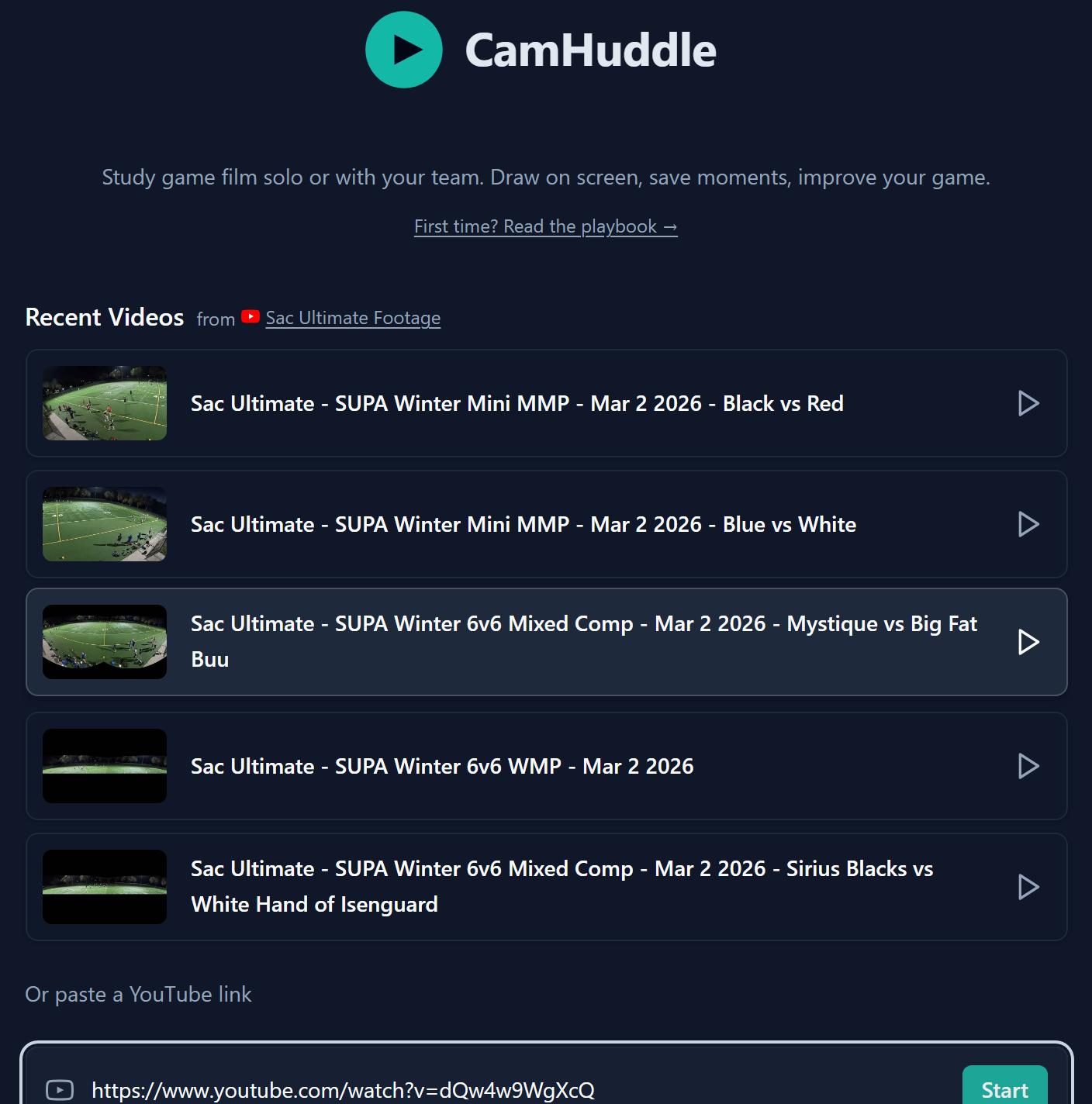
- Pick a video from Recent Videos, or paste a YouTube link below.
- Click Start to create a session.
Already have a link? Open it—you'll join the session automatically.
Step 2: Invite Teammates (Optional)
- Click the share icon (in the header row) to copy the session link.
- Send the link to teammates—anyone who opens it joins your session in sync.
Everyone sees the same video, playback, and drawings in real time. Moments are private to you. CamHuddle works great solo too—save moments, record breakdowns, and climb the leaderboard just by watching film.

Step 3: Control Playback
- Use −5s / +5s to skip backward or forward.
- Use the speed dropdown for slow motion (0.25×–2×).
- Zoom in on the action: hold Space and scroll the mouse wheel. Keep holding Space and drag to pan. Double-click to reset.
- Space (tap)
- Play / Pause
- Space + scroll
- Zoom in / out
- Space + drag
- Pan while zoomed
- ← →
- Skip −5s / +5s

Step 4: Draw on the Video
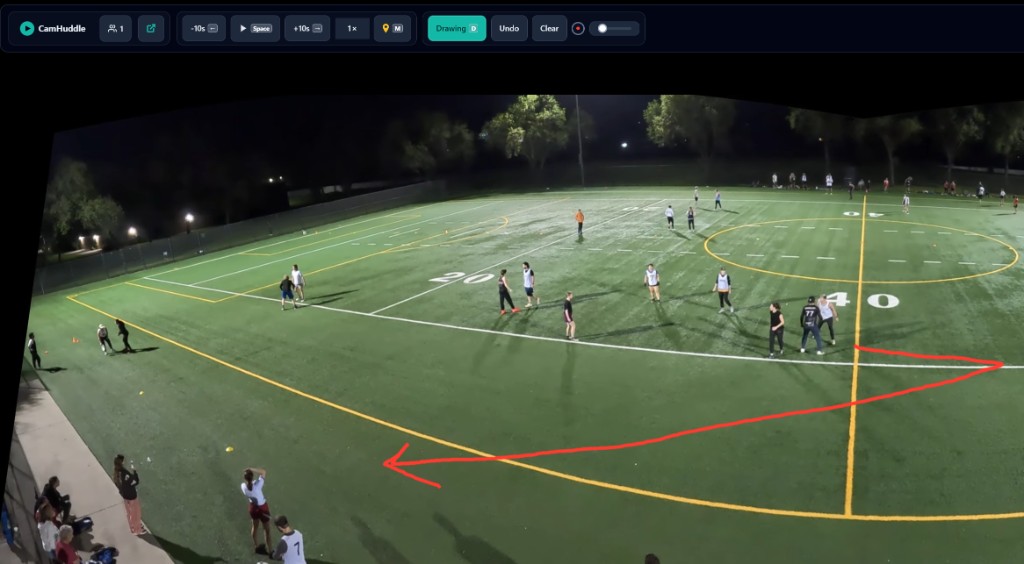
- Click Draw to enable annotation mode—turn it off when you want to use normal playback controls again without accidentally drawing.
- Draw directly on the paused or playing video—routes, circles, arrows, anything you need.
- Pick a color from the swatch and adjust brush size with the slider.
- Undo removes your last stroke. Clear wipes the whole canvas.
- If teammates are in the session, they see your drawings live.
- D
- Toggle Draw mode
- 1
- Draw – toggle mode (D)
- 2
- Undo – removes last stroke
- 3
- Clear – wipes whole canvas
- 4
- Color – pick from swatch
- 5
- Brush size – adjust with slider
Step 5: Save Moments
- Pause at the timestamp you want to bookmark.
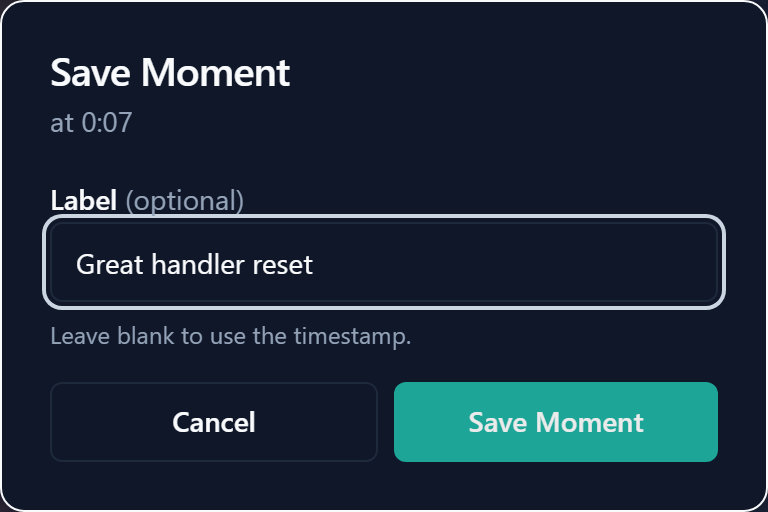
- Click the pin icon in the controls to save a moment.
- Add an optional label (e.g. "Great handler reset").
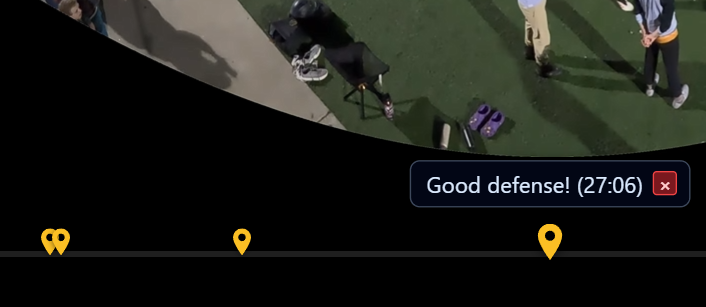
- Click any moment marker on the timeline to jump back to that point.

Step 6: Record Your Session
- Click the red record button in the bottom-right controls.
- Allow camera and mic access when prompted.
- Your webcam overlay appears on screen—drag it to reposition.
- Click Stop when done to download or share the recording.
Find all your recordings from every video in your profile—watch, share, or delete them anytime.

Step 7: Moment Playlists
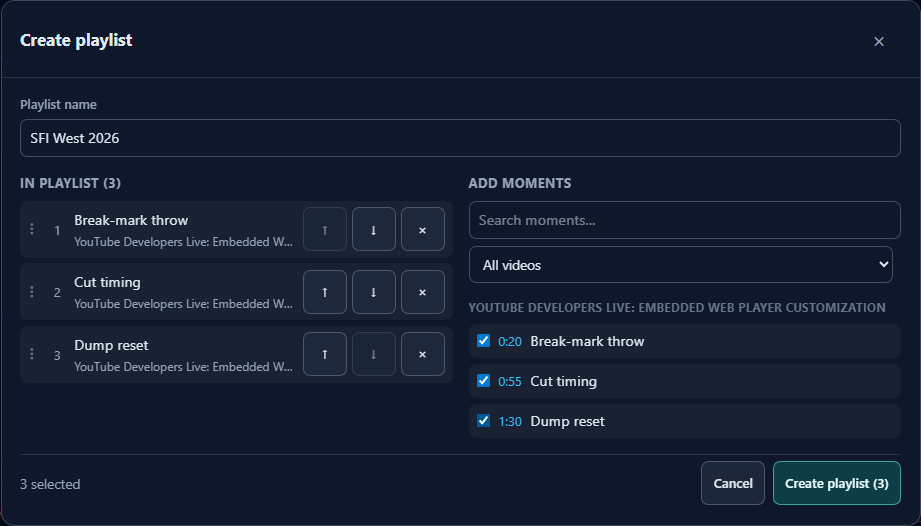
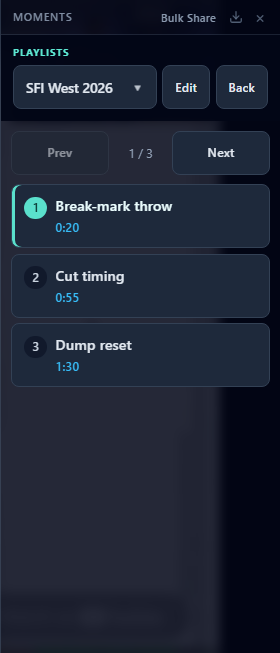
Build an ordered review set from saved moments (even across films), then play it like a queue in a session.
- On the lobby, open Your Moment Playlists and click + New playlist.
- Name it (e.g. SFI West 2026), check the moments to include, then create.
- Click the play icon on the playlist row to start a session on the queue.
- Use Prev / Next (or P / N) to move through items without autoplay.
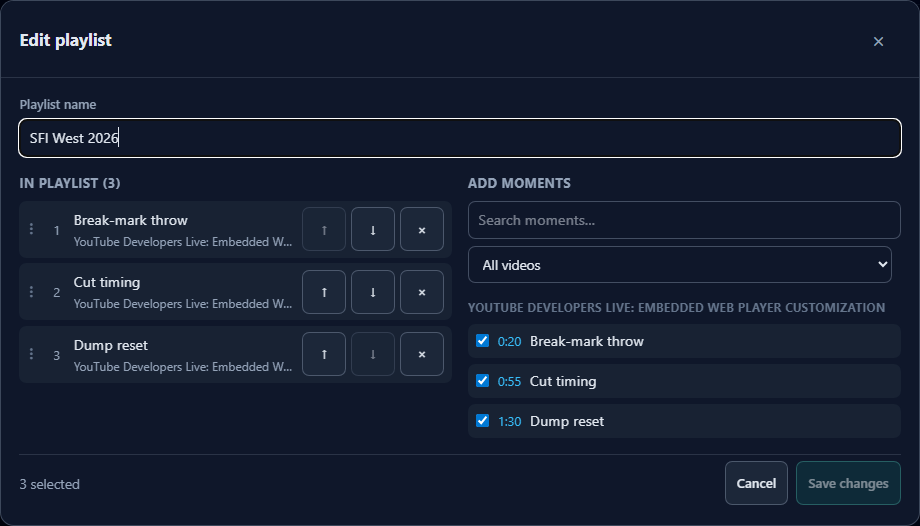
- Click Edit to rename or reorder; use ⋯ on the lobby row to copy a share link.
In a session you can also choose a playlist from the Moments panel, or multi-select moments and add them to a playlist.